Analyzing Local Windows Event Logs with Hayabusa
This guide shows how to use Hayabusa to scan local Windows Event Logs for threats and view the results in Timeline Explorer.
1. Setup and Update Rules
- Download the latest Hayabusa binary for Windows from the official GitHub releases page.
- Open a command prompt or PowerShell in the folder containing the executable.
- Update Hayabusa with the latest detection rules
.\hayabusa.exe update-rules2. Scan Local System Logs
- Run the following command to scan your local machine’s event logs (
-l) and output - When prompted to load rule sets, press Enter to accept the defaults for all questions. This will load the core rules, including those for Sysmon.
.\hayabusa.exe csv-timeline -l -o results.csv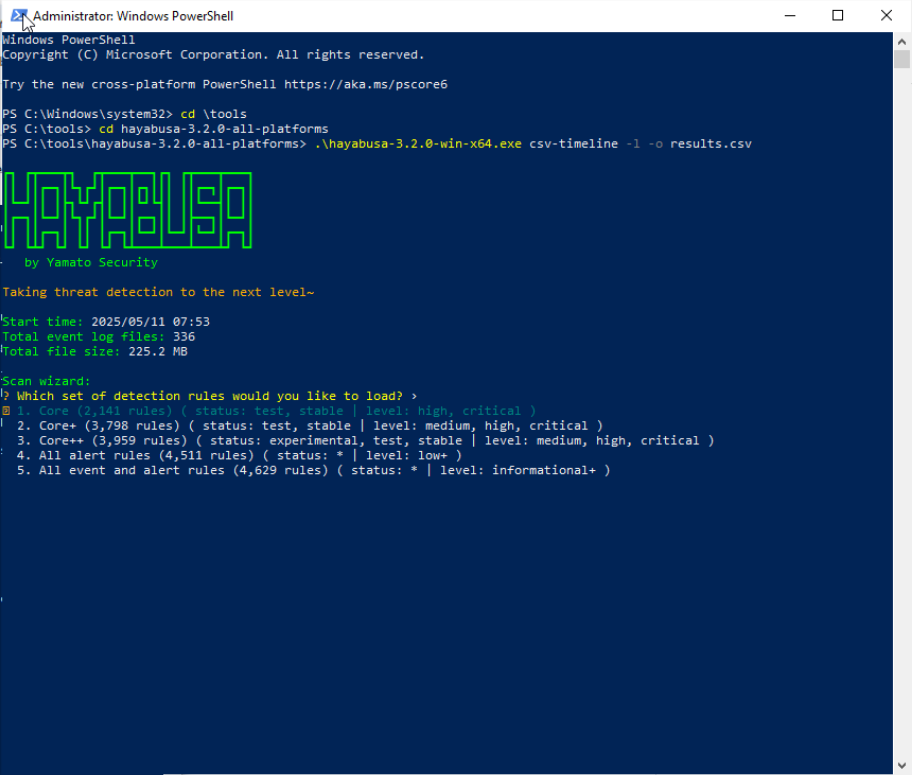
Hayabusa scans local EVTX files and saves all findings into a single results.csv file for analysis.
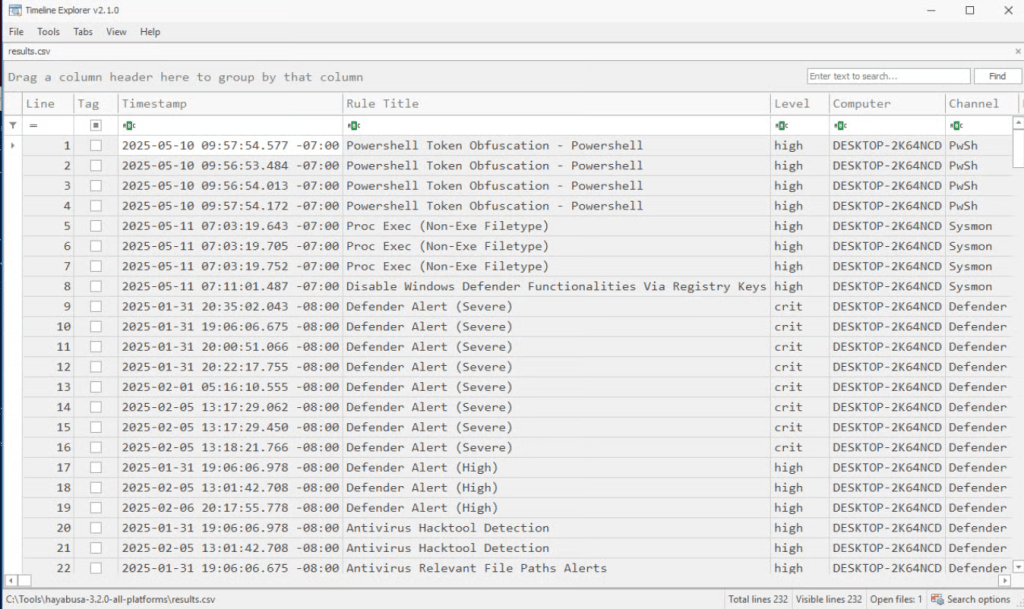
3. Analyze Results in Timeline Explorer
- Download and run Timeline Explorer from Eric Zimmerman’s website.
- In Timeline Explorer, go to
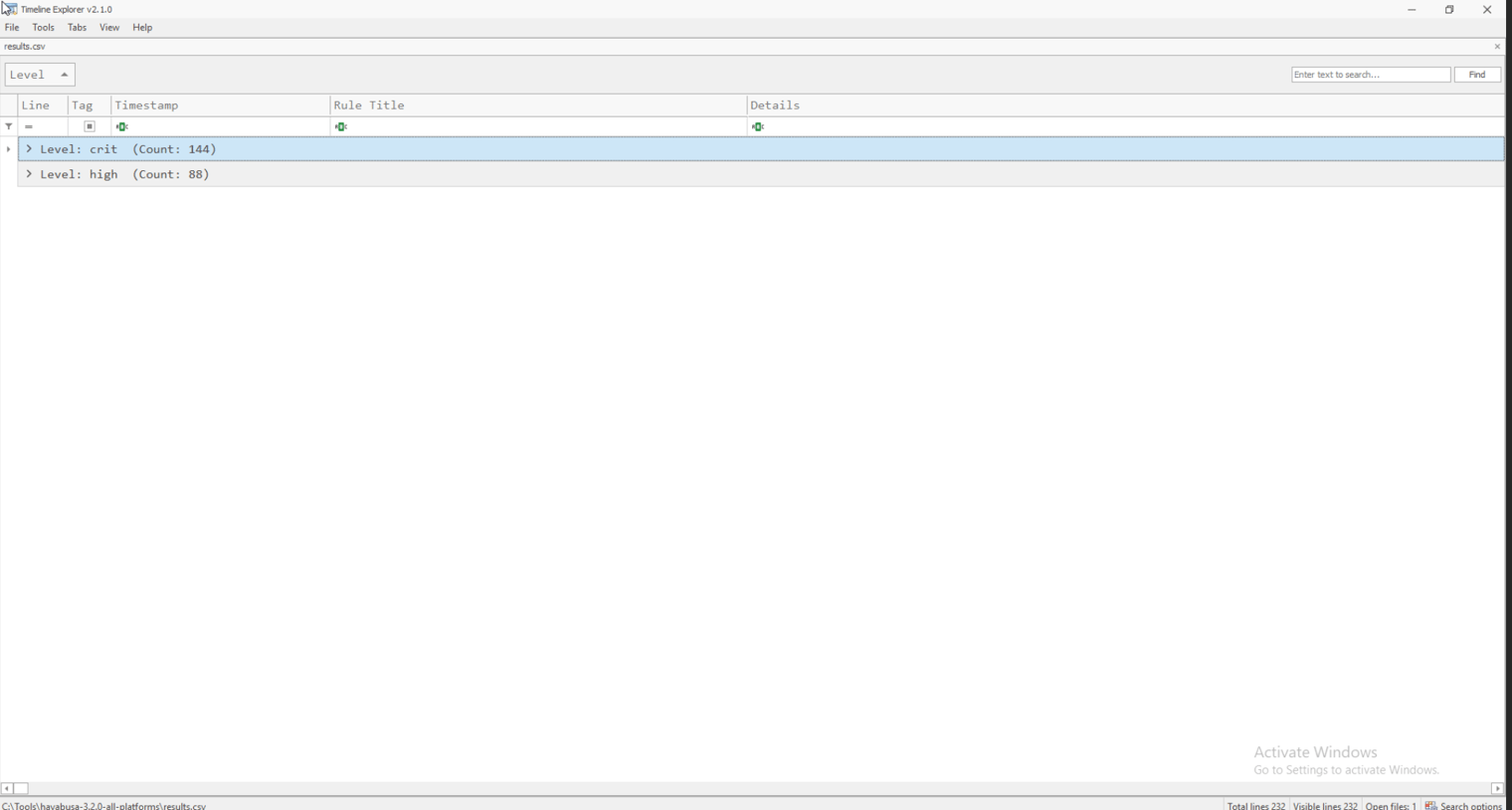
File > Openand select theresults.csvfile you generated. - The tool will load all events and detections from the Hayabusa scan.
 Networking-Dojo