Breach and Attack Simulation (BAS) is a technology that enables organizations to continuously and automatically simulate cyberattacks, replicating the tactics, techniques, and procedures (TTPs) used by real-world threat actors. BAS tools are designed to test and assess the effectiveness of an organization’s security controls, helping identify vulnerabilities and weaknesses in their defenses before an actual attack occurs.
We are going to use MITRE Caldera to run a few tests against a Windows 11 machine and review the results. If you haven’t already, please refer to my earlier blog on how to install MITRE Caldera.
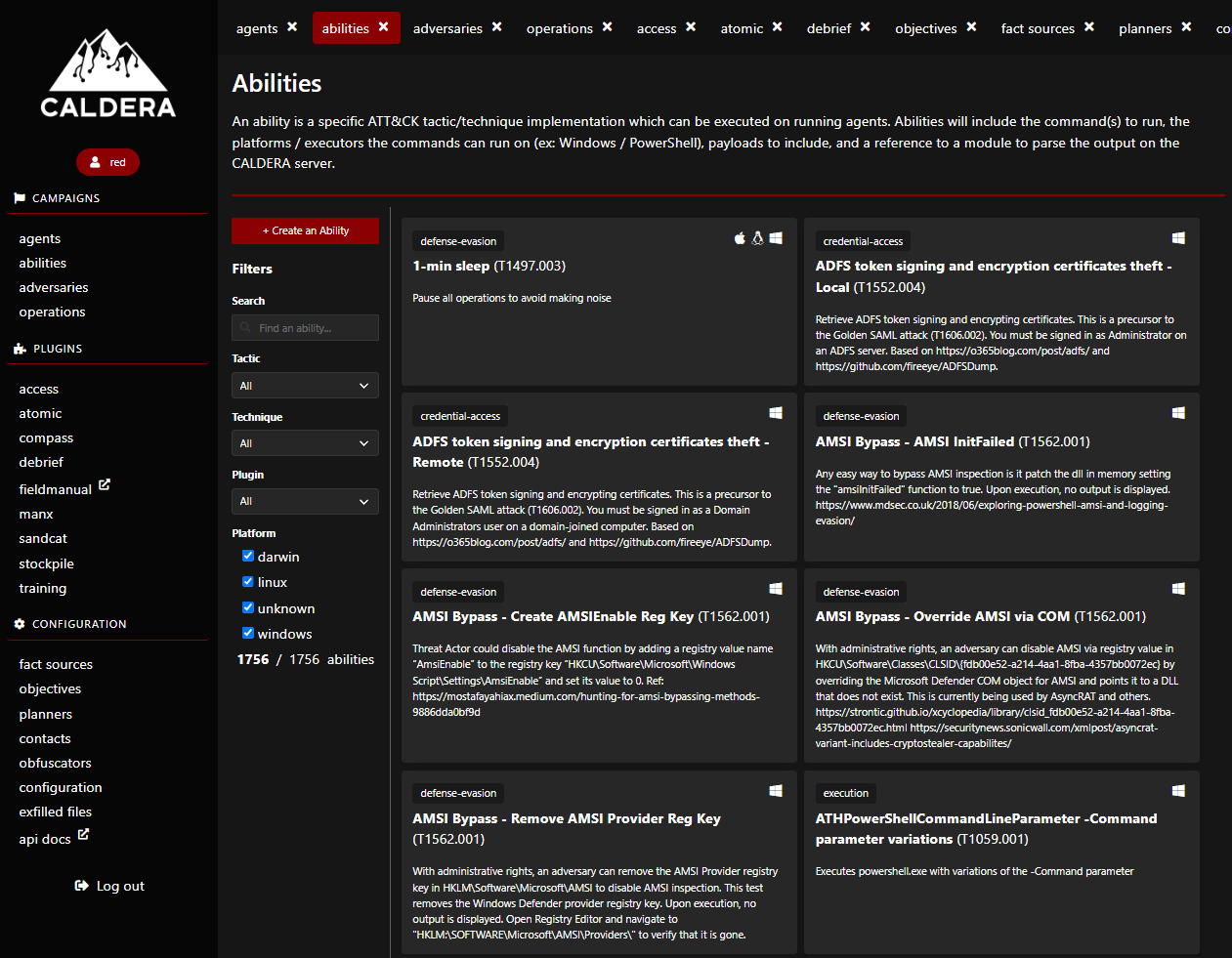
MITRE Caldera comes with preconfigured “Adversaries” that have a set of abilities. An ability within Caldera is a test script that performs a malicious action you would like to test on your machine. Many of the tests actually come from the Atomic Red Team repository. Within MITRE Caldera, you can review all abilities by selecting the “Ability” tab, and you can review all threat actors by clicking the “Adversaries” tab. One of the best aspects of MITRE Caldera is the ability to create your own abilities and adversaries, as it is open source. New adversaries can be created based on MITRE TTP mappings.
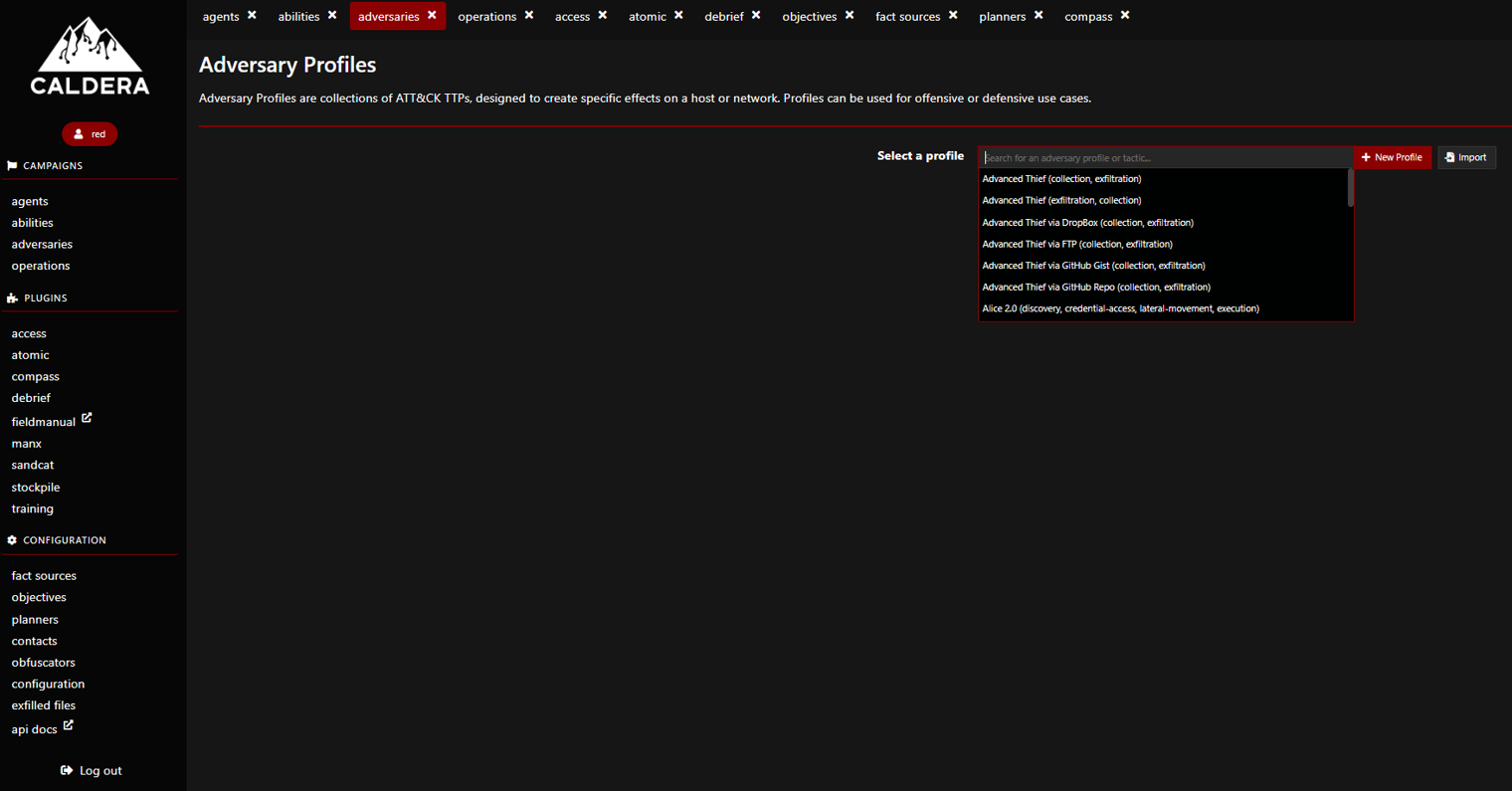
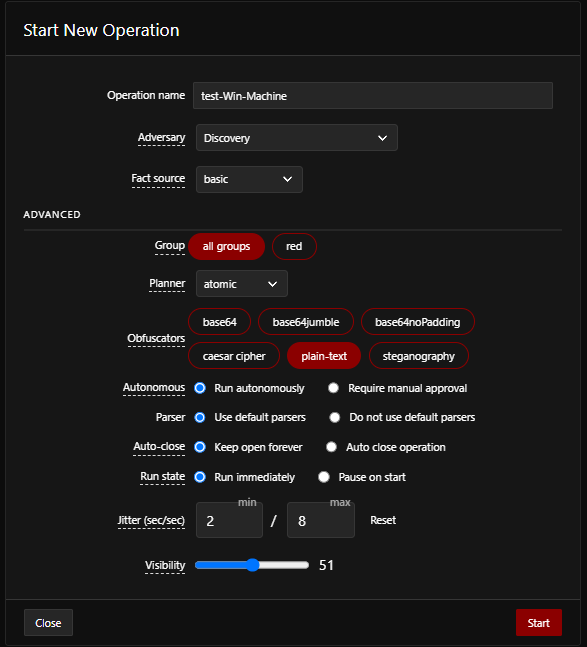
To get started, let’s select the “Discovery” Adversary profile.
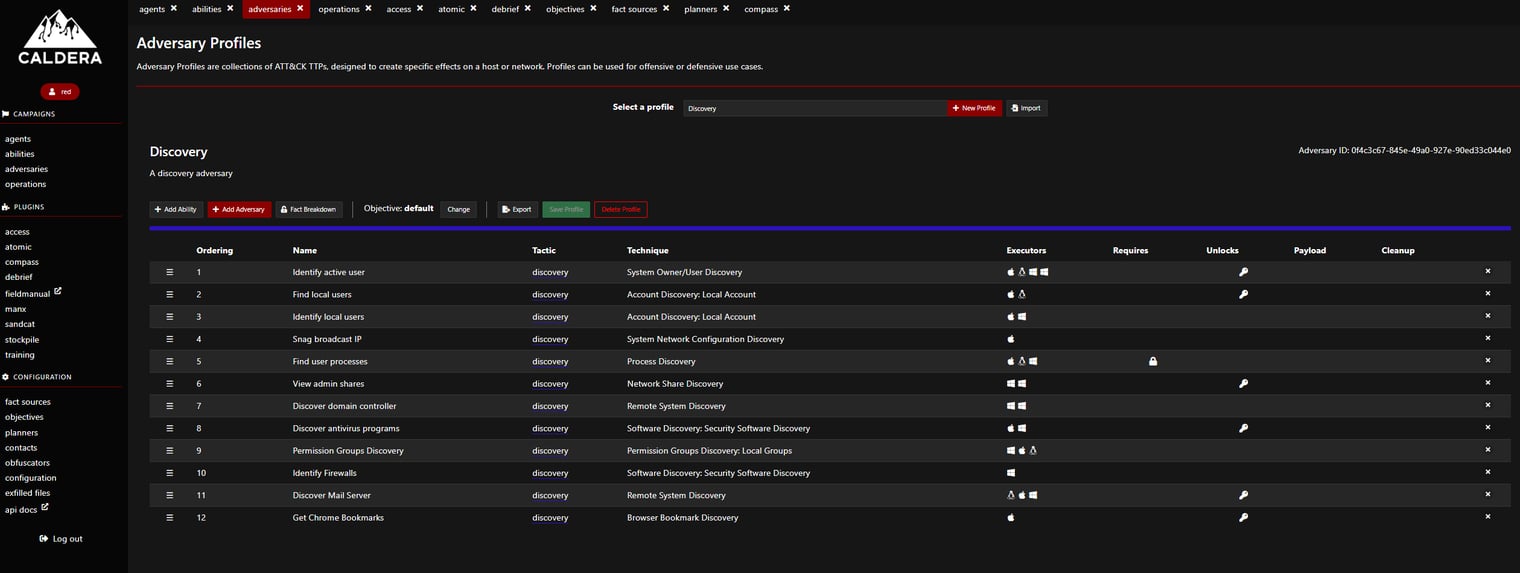
Your screen should populate with all the abilities associated with this Adversary profile. From this pane, you have the option to add more abilities if you’d like. Next, let’s click “Operations.”
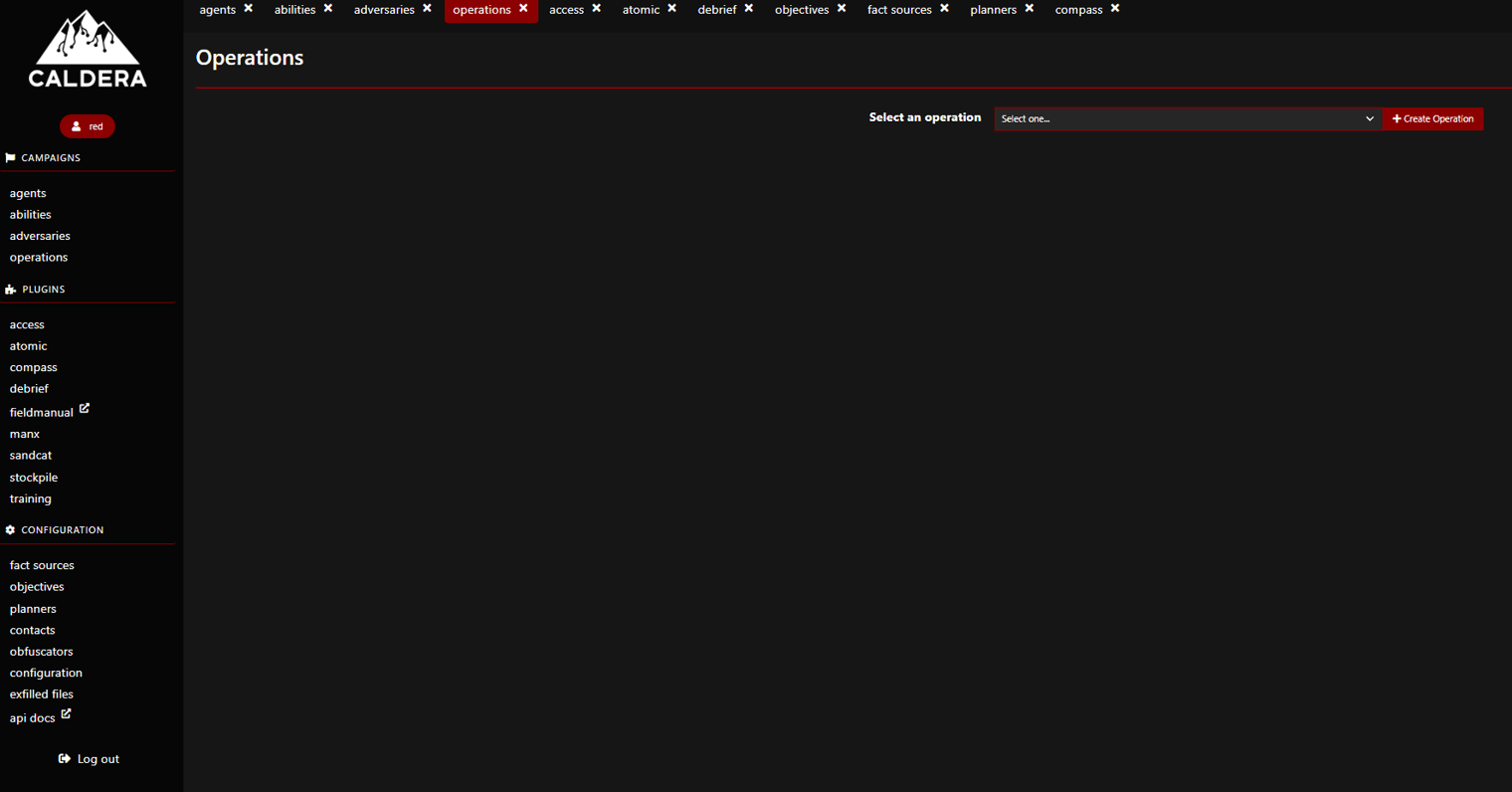
An operation is a test we create based on an adversary profile. To create a new operation, select “Create Operation.”
Name your operation and make sure to select the “Discovery” Adversary profile. From here, we can leave the rest of the settings as default and select “Start” to kick off the test on our machine (using the Sandcat agent we installed during the setup phase). There will be 12 total tests running from this threat actor.
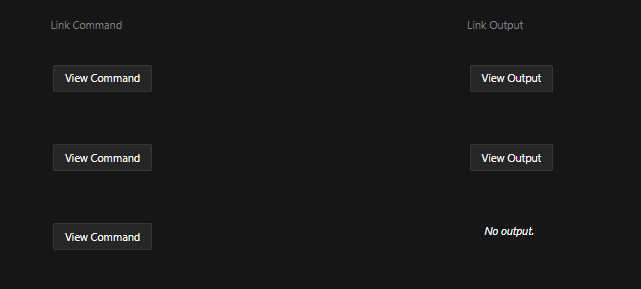
You can select “View Command” or “View Output” to get more details about what is seen in the terminal.
After testing is complete, we can add any manual commands we would like. I am going to use “whoami” as another discovery command.

After normal red team operations, we would like to do a debrief with the blue team to gather necessary details, identify what we may have missed, and discuss best practices moving forward. Navigate to “Debrief” to get a graphical depiction of your attack.
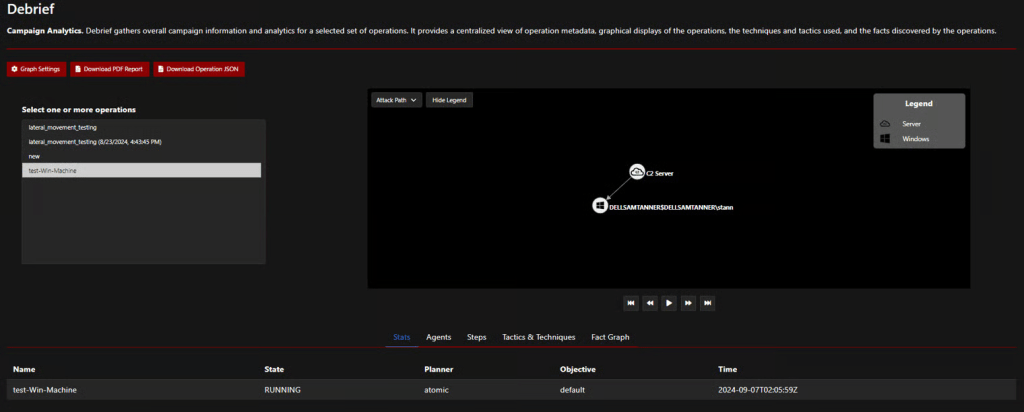
You can also view agents, steps, tactics & techniques, and a fact graph—very helpful information. We want to download the debrief to send over to our blue team, so select “Download PDF Report.”
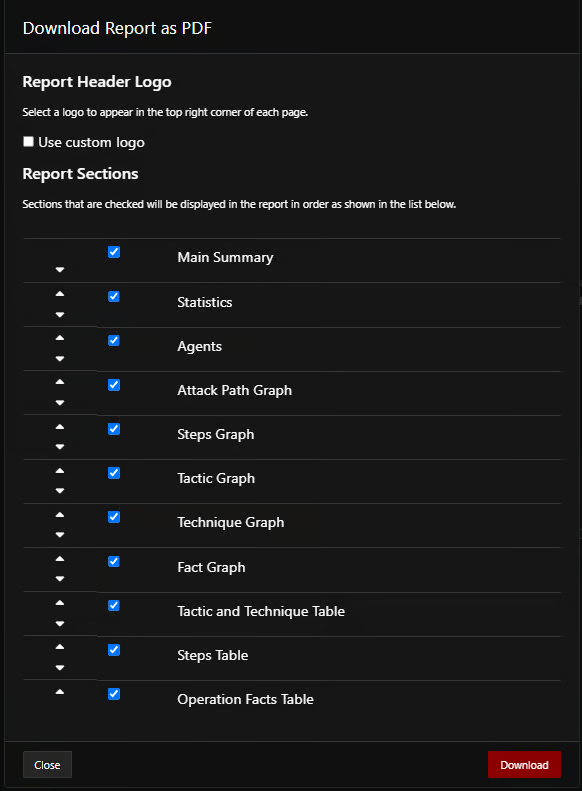
When opening the report, we get very detailed information about the test, including attack graphs and commands run.
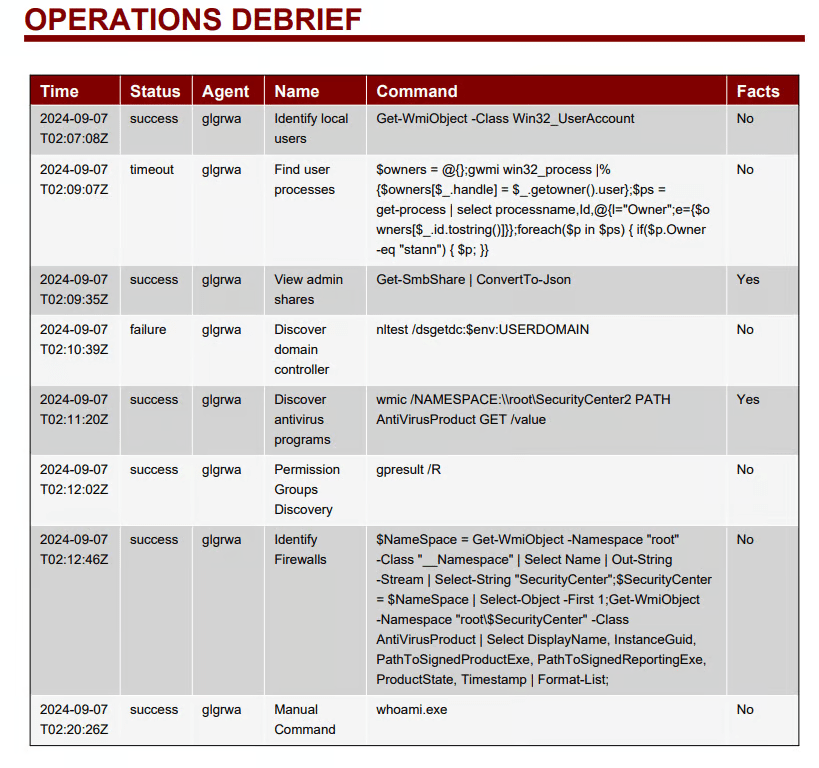
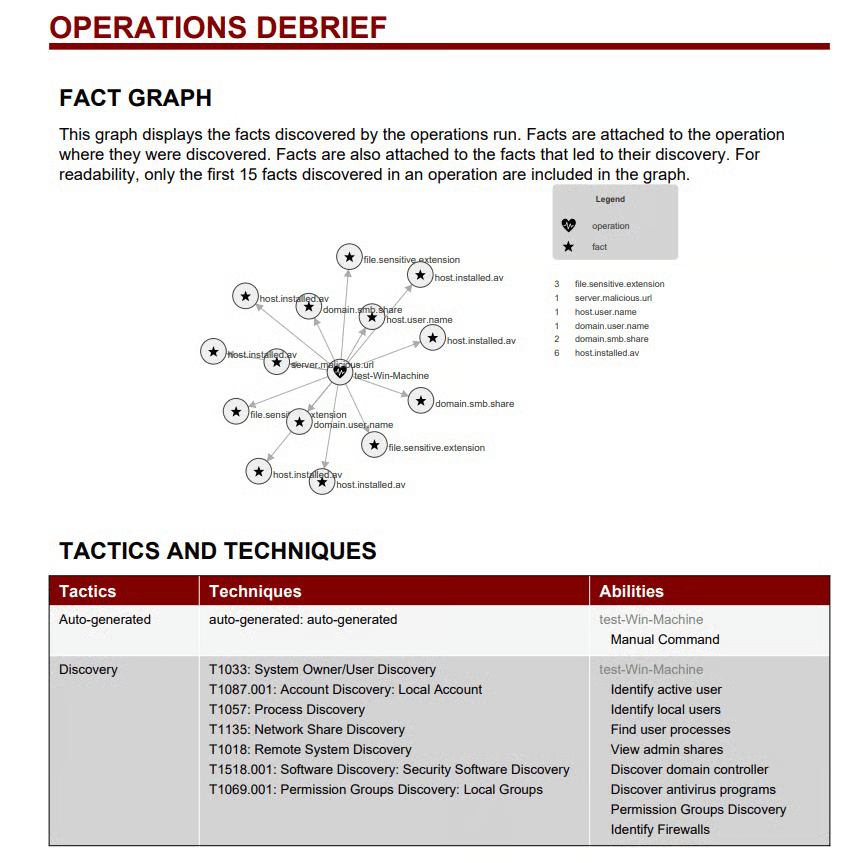
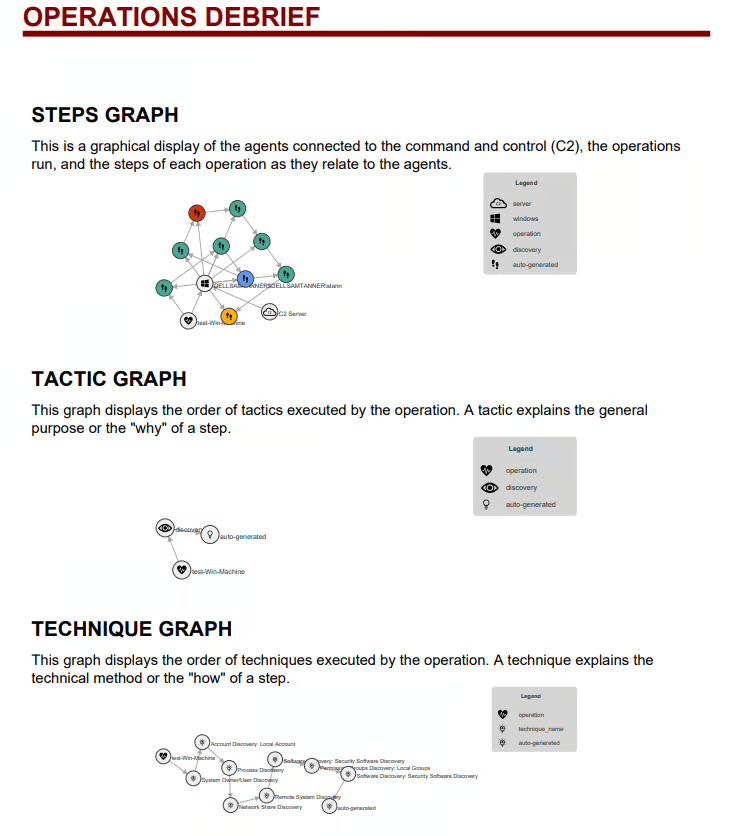
This information is incredibly helpful for a blue team member. Another very cool feature is the ability to create MITRE ATT&CK mappings from the “Compass” page. If you select “Discovery” in the “Select an Adversary” box and click “Generate Layer,” it will create a JSON file for you to download and upload into a MITRE matrix.
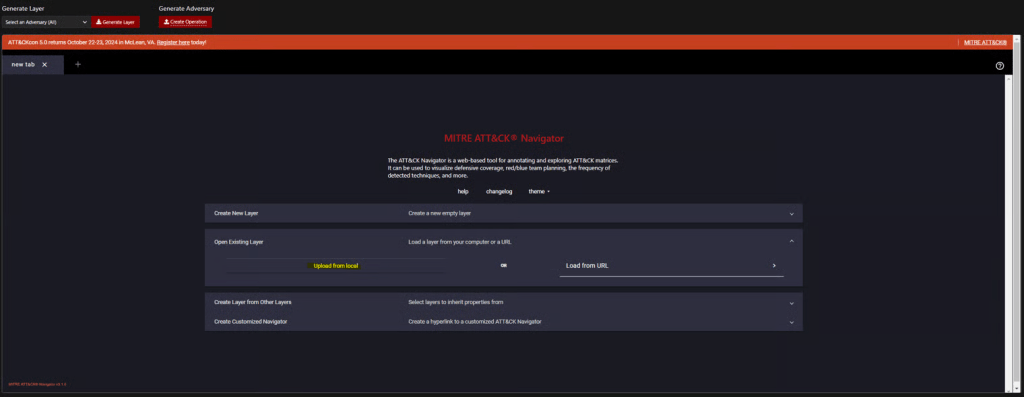
See the highlighted techniques for the commands that were just run.
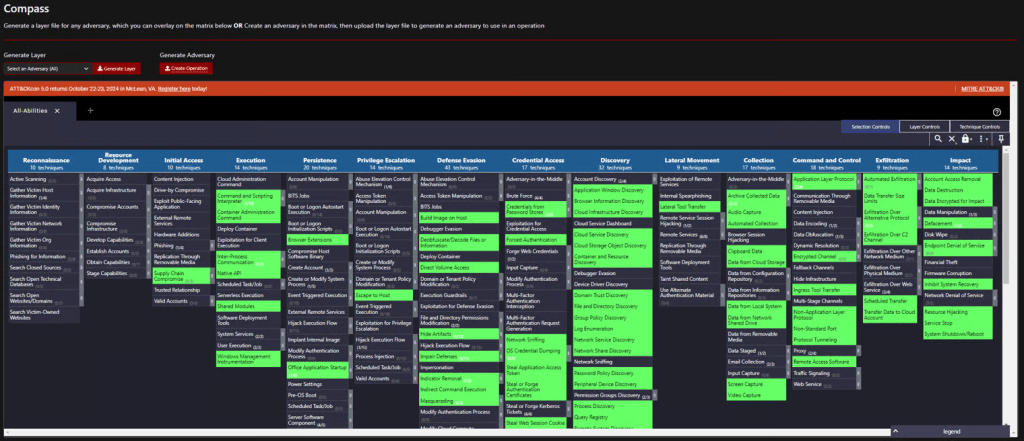
You can also create your own MITRE ATT&CK layer and select “Create Operation” for Caldera to build a custom operation aligned to the TTPs you highlighted in the matrix. Just go back to the “Adversaries” tab and select “Import” to import your MITRE JSON file.

 Networking-Dojo